Get Started with Midjourney: An Introduction to AI Art for Absolute Beginners
Learn how to create stunning AI art pieces with Midjourney, the AI art platform that lets you bring your creative vision to life!

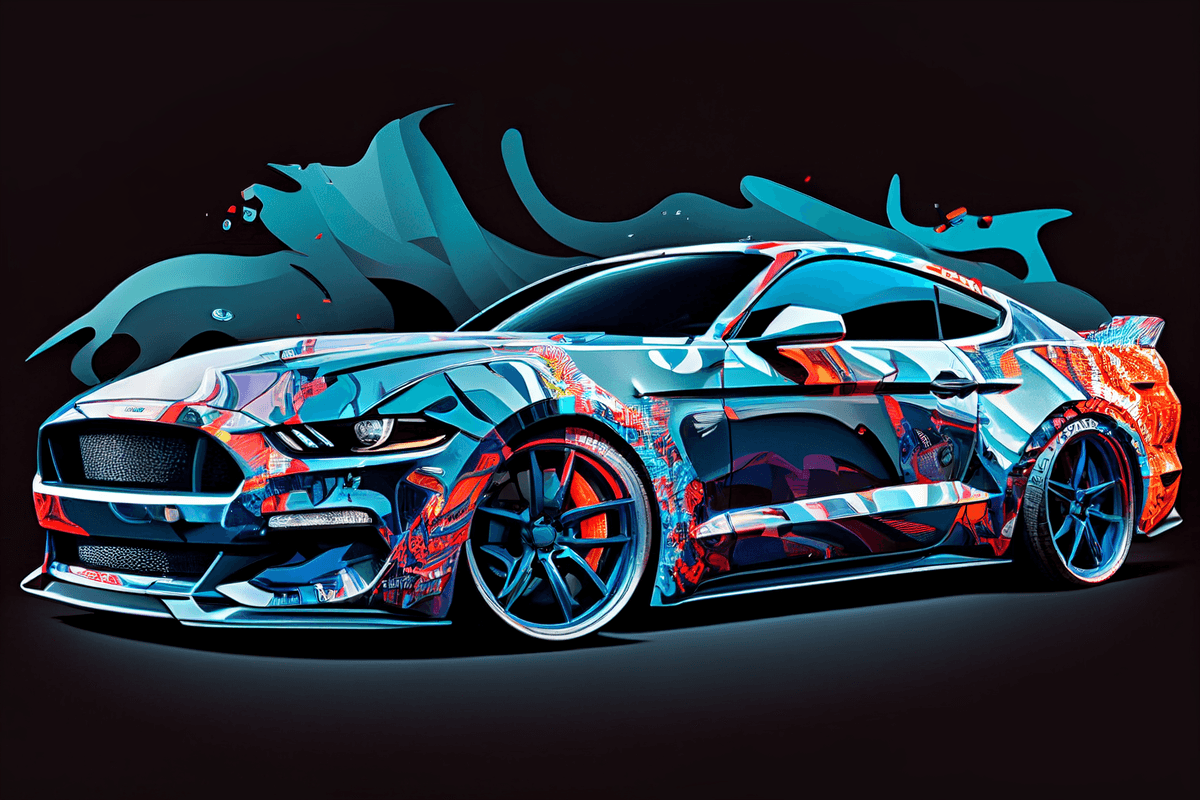
Midjourney is an AI art platform that allows you to create stunning pieces of art with just a simple command. Whether you're a seasoned artist or an absolute beginner, Midjourney is easy to use and can help you bring your creative vision to life.
To get started with Midjourney, all you need to do is join the Discord server, find a channel for newbies, and start using the /imagine command to generate unique images based on your prompts. In this guide, we'll take you through the steps to start using Midjourney and help you create your own AI art pieces.
Join the Midjourney Discord
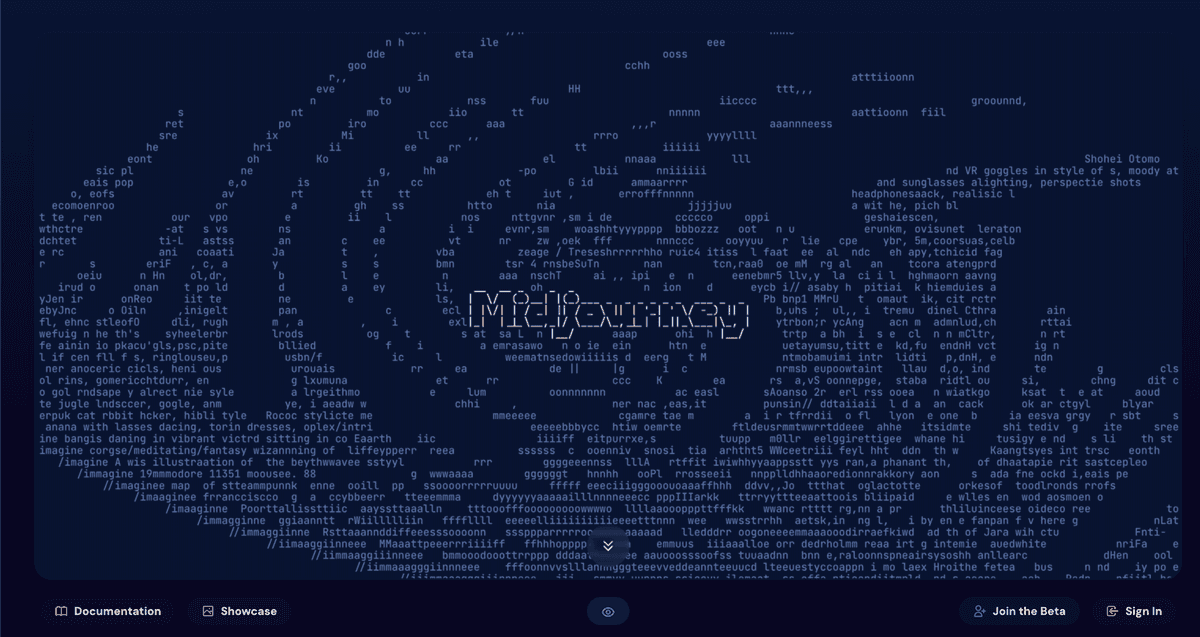
Head over to Midjourney.com and select "Join the Beta" in right corner or go directly to the Midjourney Discord server. Before you join, make sure you have a Discord login. If you don't, learn how to create one here.
Subscribe to a Plan
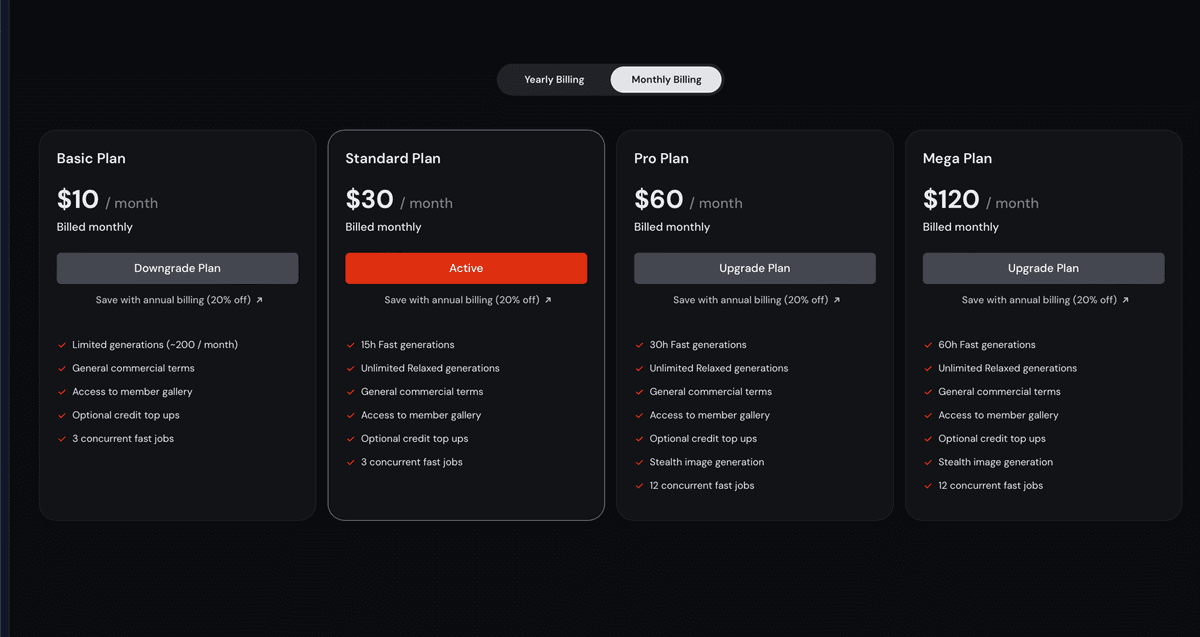
Sadly, Midjourney doesn't offer a free trial anymore, only paid plans. Trial users use to have roughly 25 free jobs. Use the /subscribe command in any Bot Channel to generate a personal link to the Midjourney account page. Make sure you are signing in using your existing Discord account.
Find a Newbies Channel
Once you're in the Midjourney Discord server, select any `newbies-#` channel visible in the left sidebar.
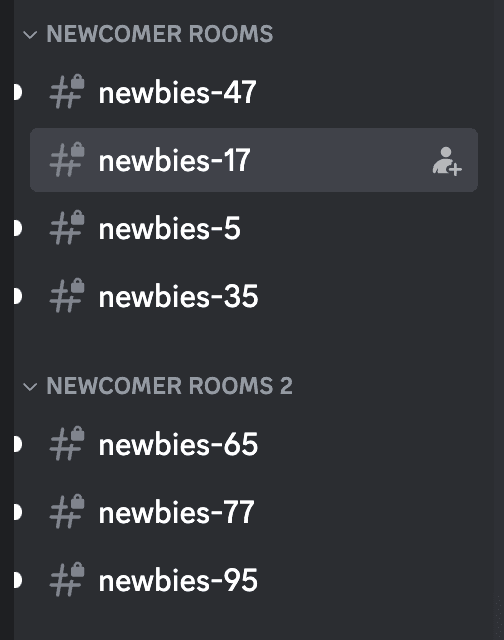
In case you don't see newbies channels restart the Discord app.
Use the /imagine Command
Interact with the Midjourney Bot on Discord using a Command. The /imagine command generates a unique image from a short text description (known as a Prompt). Type /imagine prompt: or select the /imagine command from the slash commands pop-up. Then, type a description of the image you want to create in the `prompt` field and click return to send your message.
For example:

Processes the Job
The Midjourney Bot takes about a minute to generate four options.
Upscale or Create Variations
After the initial image grid has finished generating, two rows of buttons appear. Use the `U` buttons to upscale an image, generating a larger version of the selected image and adding more details. Use the `V` buttons to create slight variations of the selected grid image.
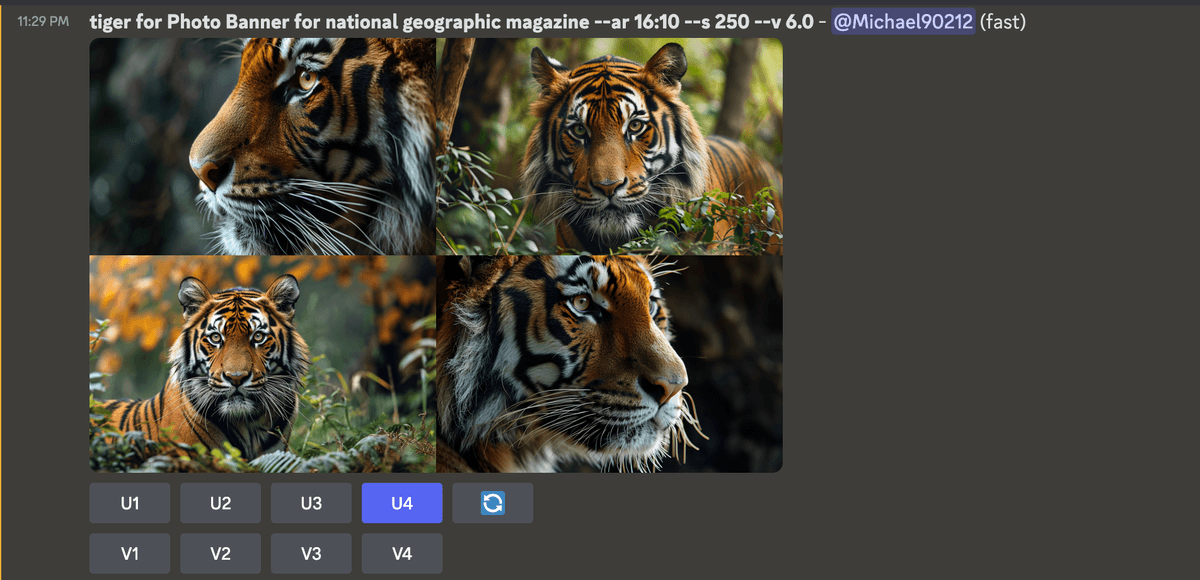
If you want to see bigger image just click on it and then choose `Open in Browser`. If you like it you can save it through a browser.
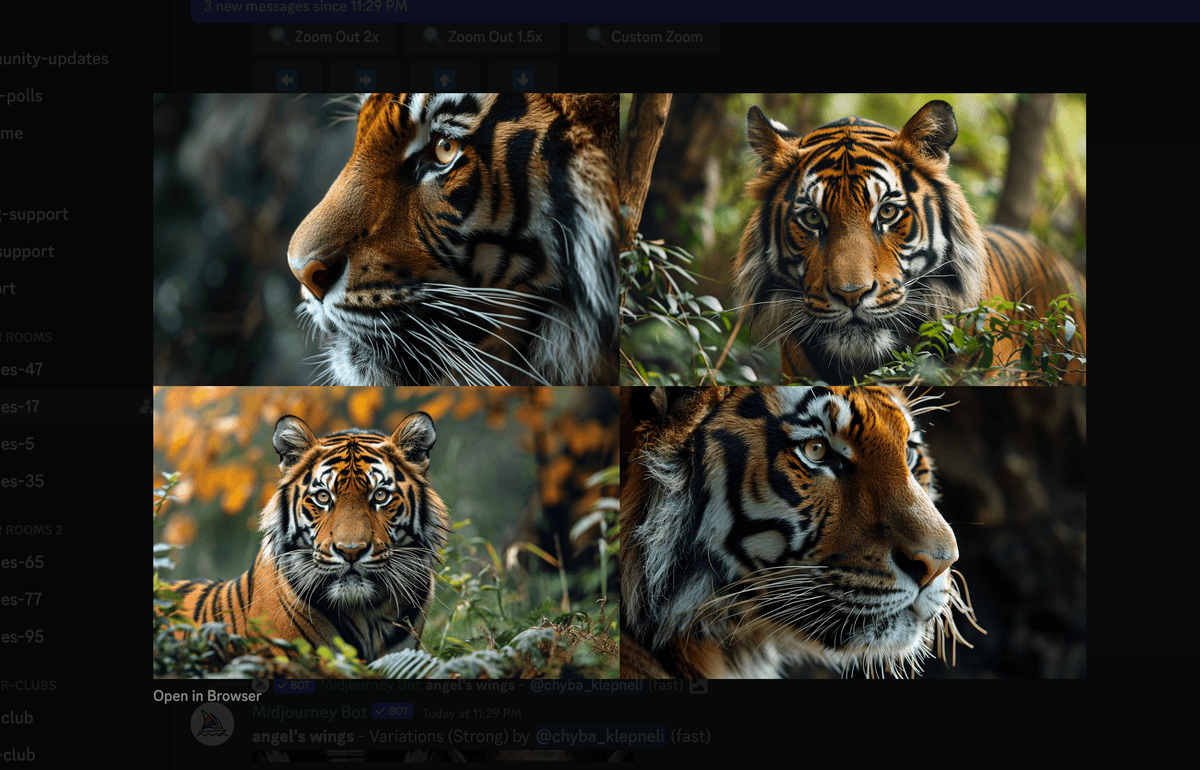
In our example we can chose `V4` for more variations and `U4` because I like it already.
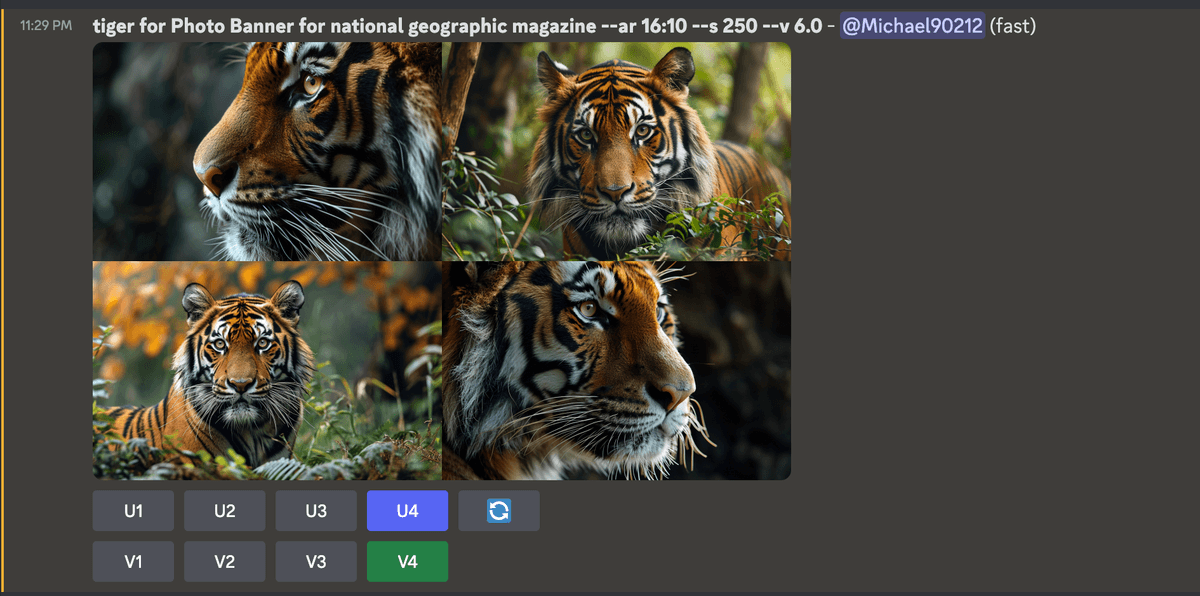
We are happy with the fourth variant so let's upscale it by clicking on U4.
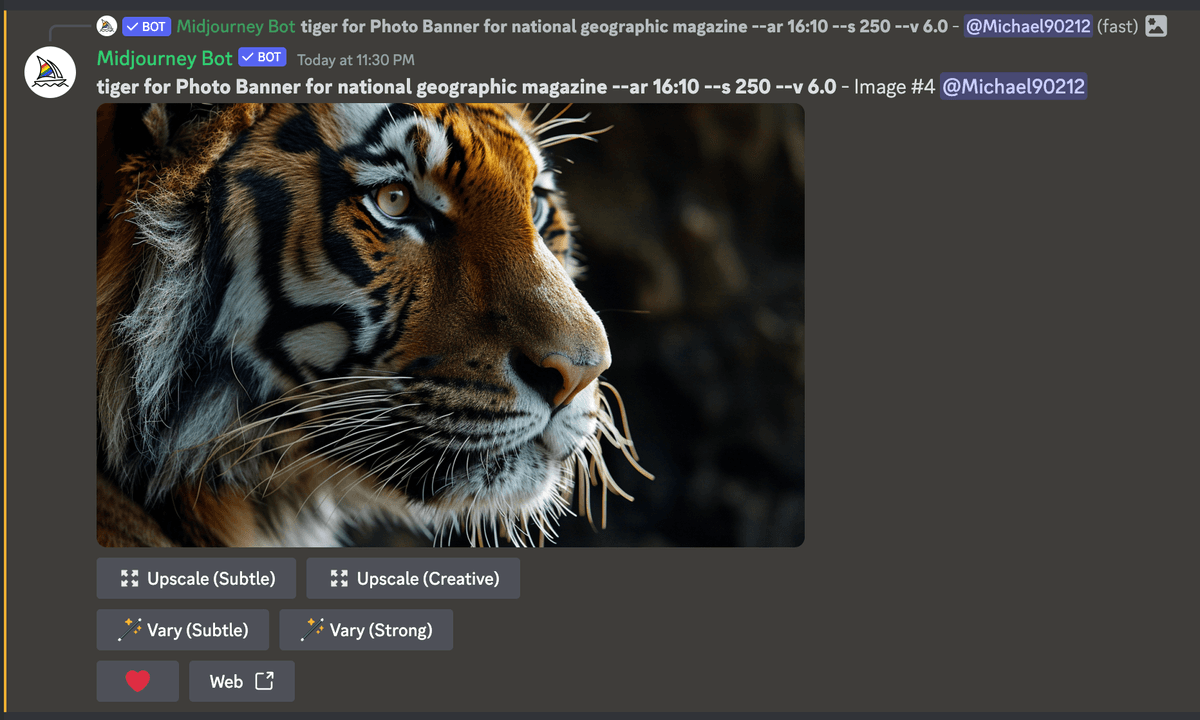
Now you can choose between Upscale (Subtle) and Upscale (Creative) if you are using version 6. If you are using version 5.2 you have a lot of more options which will be available in version 6 later this year.
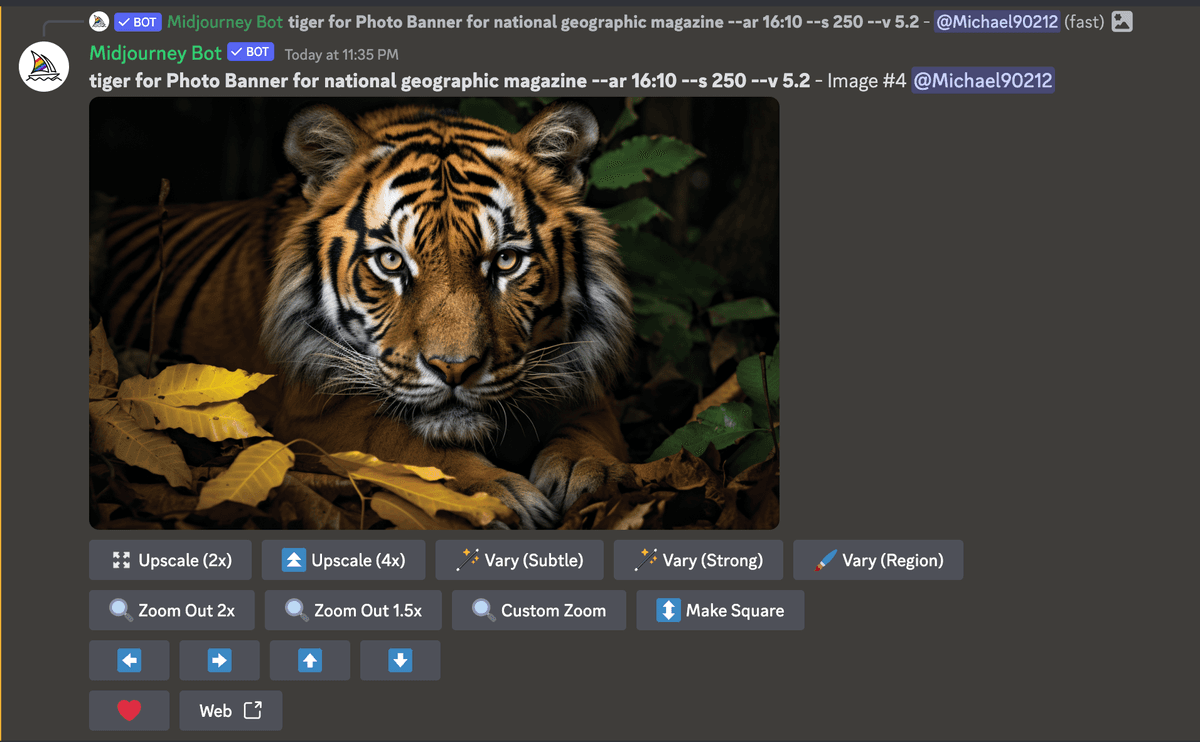
In version 5.2 you can upscale up to 4x, make variations, zoom in and pan generated image.
Rate Images and Save Your Image
Click a smiley button to rate any upscaled image on the Midjourney website or in Discord. Click on the image to open it to full size, and then right-click and choose Save image. On mobile, long tap the image and then tap the download icon in the top right corner.
Now that you have the basics of Midjourney, it's time to let your creativity run wild and start generating your own AI art pieces!
Subscribe to our newsletter and receive a selection of cool articles every two weeks.
By clicking “Sign Up”, you accept our Terms of Service and Privacy Policy. You can opt-out at any time.
No spam. Twice a month.
Unsubscribe anytime.
Sign up to our newsletter and receive a selection of cool articles weekly.
By clicking “Sign Up”, you accept our Terms of Service and Privacy Policy. You can opt-out at any time.